Hear the context.
Orange bars summarize recorded audio levels. Taller bars represent stronger recorded sound, not a precise live frequency spectrum.

INSIDE THE PRODUCT
Start protection, connect your people, and review what was recorded.
This feature explanation is separate from the campaign commercial. The animation illustrates the interface; it is not a screen recording or independent test.
Orange bars summarize recorded audio levels. Taller bars represent stronger recorded sound, not a precise live frequency spectrum.
Blue marks identify video recordings alongside audio on the shared timeline.
The circular timeline represents a 12-hour window. Choose AM or PM and a date, then navigate to a recorded moment. This is a viewing window, not a promise that files are deleted after 12 hours.
The map provides available location context for the selected time. It is not guaranteed live tracking; GPS quality and connectivity matter.
SCREEN-BY-SCREEN GUIDE
Based on the current Android interface and the creator’s real-phone testing report. Controls can differ by account role and build.
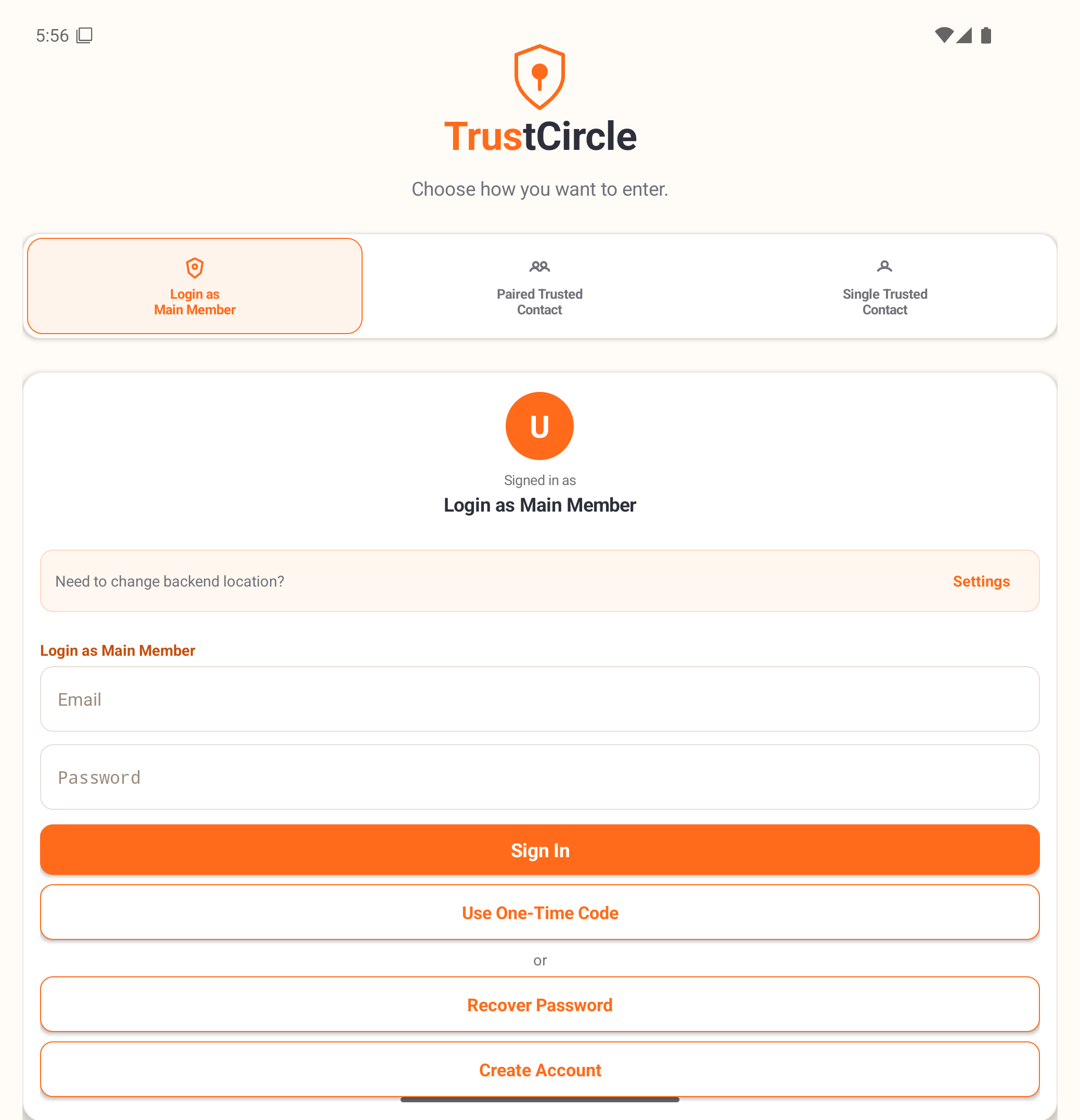
01 / GET STARTED
The person whose phone records. Create an account or sign in to manage protection, review your own timeline, and invite your trusted people. The planned subscription belongs to this main account and pays for file storage; pricing will be announced.
In the current Android flow, both selected contacts sign in together with their own accounts to open the shared safety timeline. They can review shared context without controlling the main phone’s recording settings. Trusted contacts do not need a separate paid subscription.
One trusted person can sign in independently to send a TrustCircle message. This entry path is for messaging; the current app uses paired sign-in for shared timeline access.
Create Account sets up a main account. Recover Password starts account recovery. Use One-Time Code offers an alternative sign-in for the main member or a single contact where code delivery is configured. Invited contacts accept their invitation and create their own login.
02 / HOME
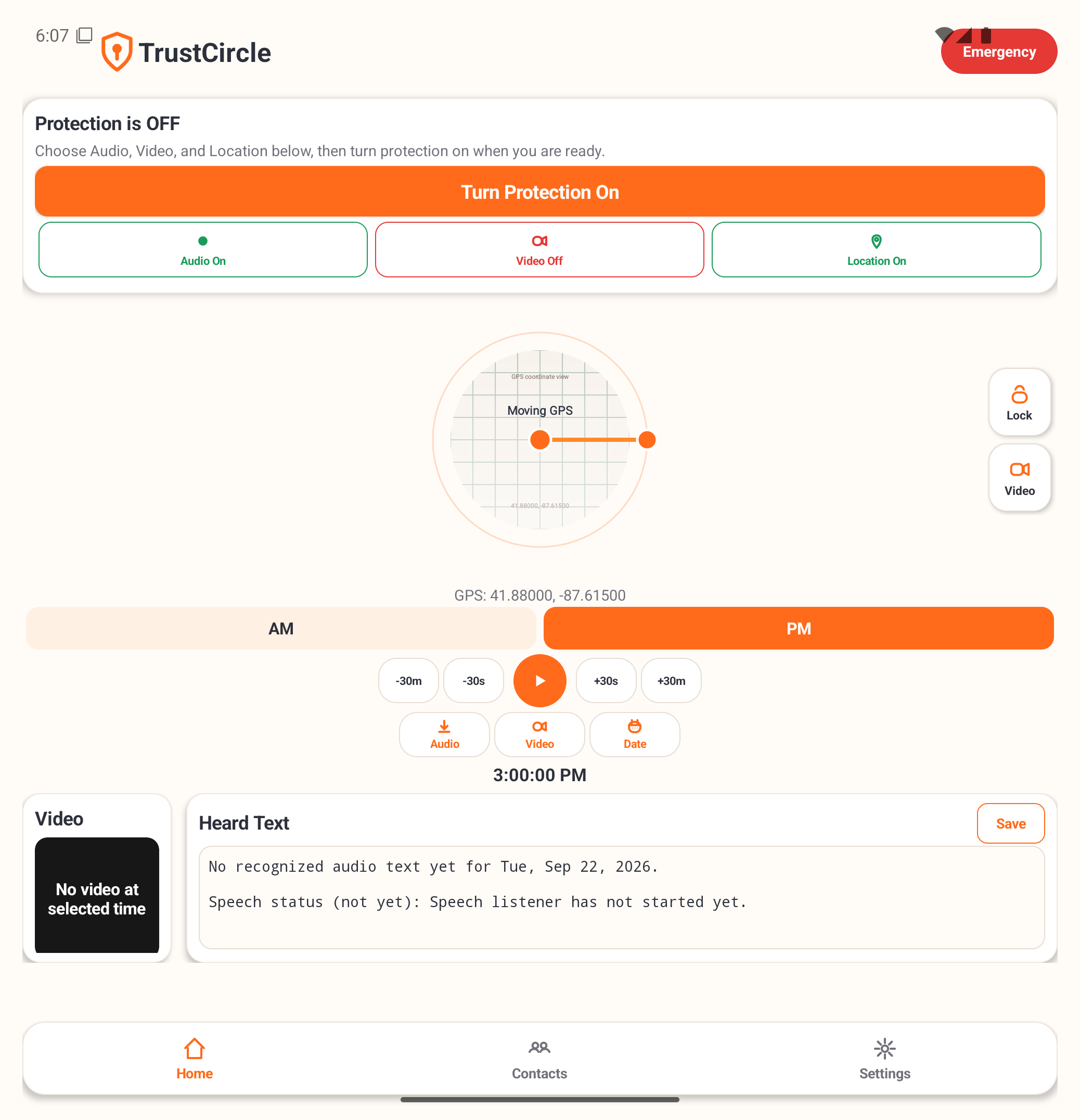
Turn protection on before you need it and check its displayed status. Audio and Location are the usual starting signals; Video has its own control. Turning protection off stops capture. An On setting is not confirmation that every file has reached your contacts.
Enables microphone recording while protection runs. Spoken details and surrounding sounds can give your circle context. Audio cannot recover a conversation from before recording was enabled.
Enables camera capture and adds video moments to the timeline. The Video panel shows available footage or the camera preview, depending on app state. A covered camera cannot show what is outside the phone; video also uses more battery and storage.
Adds available GPS samples to recorded moments. Select a moment to see its location context. The map is a recorded reference, not a guarantee of the person’s present position. Indoors or with limited permissions, samples can be missing or inaccurate.
03 / REVIEW
The clock represents 12 hours of the selected day. Orange bars show audio activity; blue marks show video. Drag around the circle to move to available recordings. Empty stretches mean there is no displayed media for that interval.
AM shows the first half of the day and PM the second. Date opens the calendar to review another day with available recordings. The displayed time helps you match footage, sound, and saved location.
Play starts available media at the selected moment; pause stops playback. Use −30s / +30s for small jumps and −30m / +30m to move through longer periods.
Lock prevents accidental dragging of the clock; it does not lock or encrypt files. The Video filter shows video moments only. Turn the filter off to see both audio and video.
The center provides location context when samples exist. Tapping an available map point opens it in an external maps app. A saved coordinate or nearby address is a clue to review with its timestamp, not proof of someone’s current location.
Shows speech transcribed from available recordings, with a recent-text preview for the selected day. Names, street names, and plates may be mistranscribed: replay the original audio before relying on the text.
Choose the recording type, date, and From / To times, then select a folder. The app exports available files for that interval so you can keep relevant material. Missing recordings cannot be reconstructed by exporting.
The Save control beside Heard Text exports a text log. Choose a day, optionally narrow the time range, and choose a folder. A transcript is separate from the original audio and video.
04 / YOUR PEOPLE
Your Trusted People contains two contact slots. Enter each person’s name and phone number, then use Text Invite to open your SMS app with an invitation ready to send. The recipient accepts and chooses their own login. Check contact readiness before relying on the circle.
The main member’s bell / Alert action sends an urgent message to the trusted circle, including available location and a latest-audio link when present. Its purpose is to notify your people promptly so they can review context and act. Delivery still depends on the connection, server, and recipient notification settings.
Use the message box and Send Message for ordinary updates and coordination. A single trusted contact can send a message without the other person’s login. A sent message does not by itself establish that everyone has read it.
For example, a recorded vehicle description, spoken plate, timestamp, and saved location can help your contacts explain what happened to police. Contacts make that call themselves. TrustCircle does not automatically dispatch emergency responders or guarantee recovery.
05 / SETTINGS
Choose the app’s interface language in Settings. Show Quick Intro reopens the onboarding walkthrough. Interface language and speech-recognition accuracy are different things.
When enabled, queued recordings wait for an eligible Wi-Fi connection. This can reduce mobile-data use, but it can also delay when your circle receives new recordings while you are away from Wi-Fi.
Review microphone, camera, location, and notification access for the signals you use. Background location access supports capture when the app is not open. Denied permissions restrict the related feature.
Status information and the pending-upload count help distinguish local capture from files successfully sent to the server. Waiting to upload means material may still be only on the phone. A lost or damaged phone can lose material that has not uploaded.
Recording notifications, resume reminders, and the home-screen protection widget make status and controls easier to reach. Resume behavior depends on Android version and phone settings; follow a Resume prompt if recording has stopped.
Where supported, optional postal-code rules turn individual signals on or off in specified areas. No matching rule means the Home toggles apply. ZIP triggers are unavailable in the current self-hosted build without a local postal-code database.
An advanced setting chooses the server used for login, uploads, and timeline data. Only change it for your own server or with support guidance. The public campaign website is not the recording server.
Sign out ends the app session. A specially enrolled dedicated recorder can keep TrustCircle open and protection locked on; it is an advanced setup with restricted stop and sign-out controls, not the normal personal-phone experience.
06 / BEFORE LAUNCH
The creator reports successful real-phone testing of the app’s end-to-end workflow. The current development system is not end-to-end encrypted. Funding will support security work, and the creator’s release commitment is that the system will not launch publicly without encryption implemented and tested.
The 12-hour dial is a way to navigate a day, not a storage policy. Final retention and deletion terms will be published before release. Revoking access cannot erase a copy someone has already downloaded.
The working app began on Android. iPhone development is underway; its background and security restrictions may require a different experience. An iPhone release date and feature parity are not yet promised.
Features depend on permissions, battery, available storage, connectivity, and server availability. Notifications are intended to reach your trusted people promptly, but instant delivery is not guaranteed. In an urgent situation, contact emergency services directly.
ACTUAL DEVELOPMENT CAPTURES
These genuine emulator screenshots show an earlier build, including a Protection Off screen with synthetic test data. They are not the extent of the creator’s later real-phone tests.